Install & first launch
Three steps, about five minutes. Needs macOS 14.4 or later.
Updated
Install the app
- Open the
.dmgand drag Cowinx into Applications. - Double-click Cowinx. macOS blocks it — click Done.
- Go to System Settings → Privacy & Security, scroll to the bottom, and click Open Anyway.
- Enter your password, then click Open.
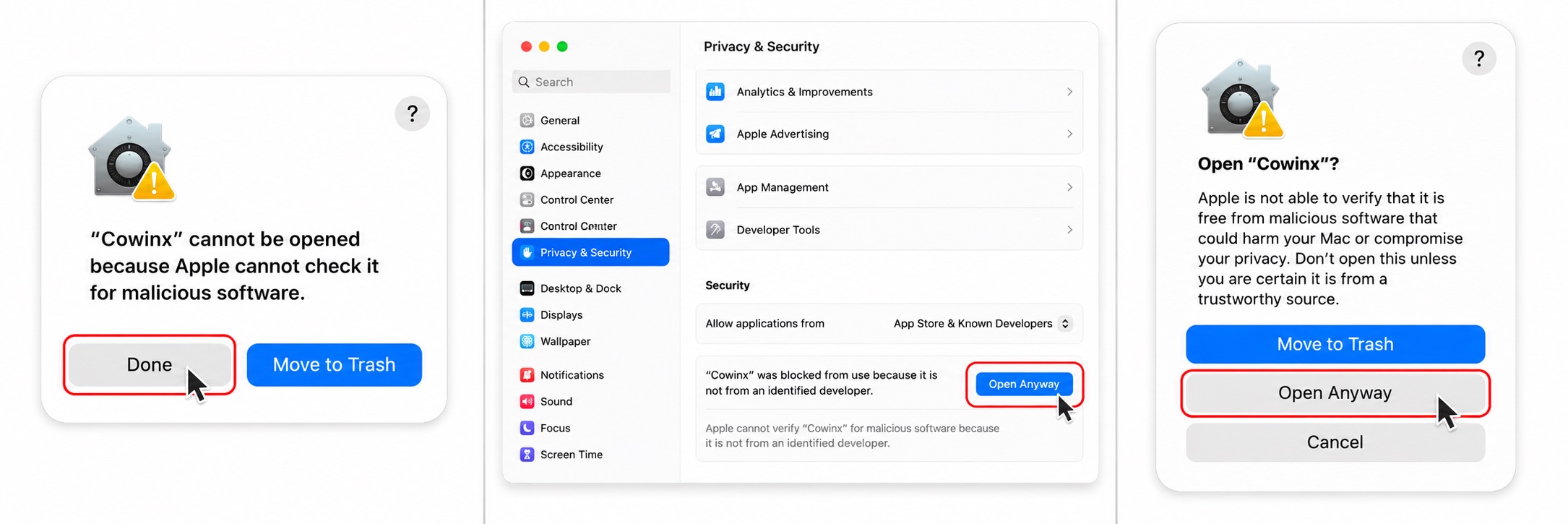
Expected, and only on first launch — Cowinx ships unsigned on purpose, since a signature is a fingerprint monitoring tools can match.
Grant three permissions
All three live in System Settings → Privacy & Security: Microphone, Accessibility, and Screen & System Audio Recording. Quit and reopen Cowinx afterwards.
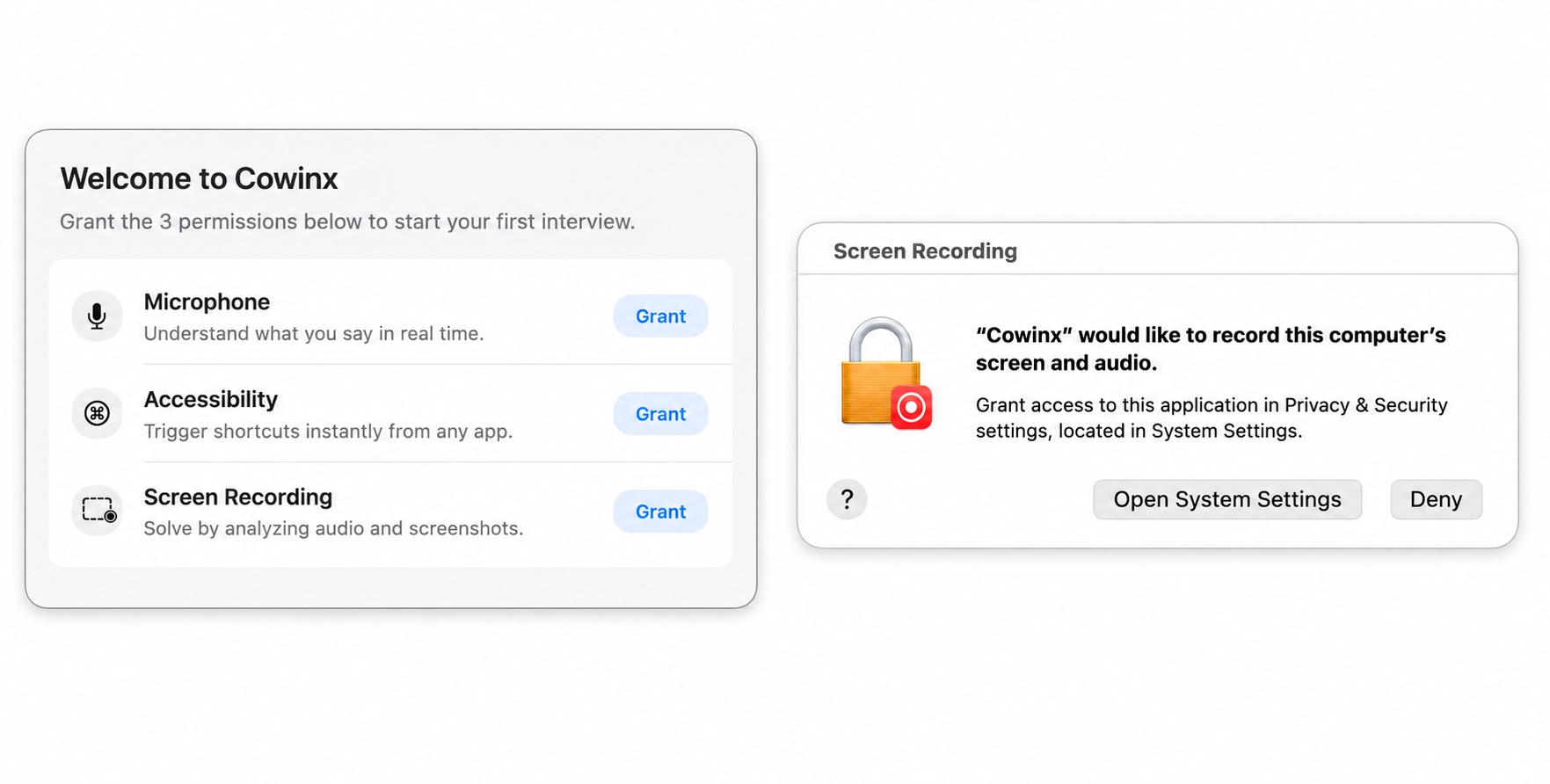
Get your first answer
- Sign in with Google on the control bar.
- Click Start Interview.
- Say something, then press ⌥⏎ to answer it.
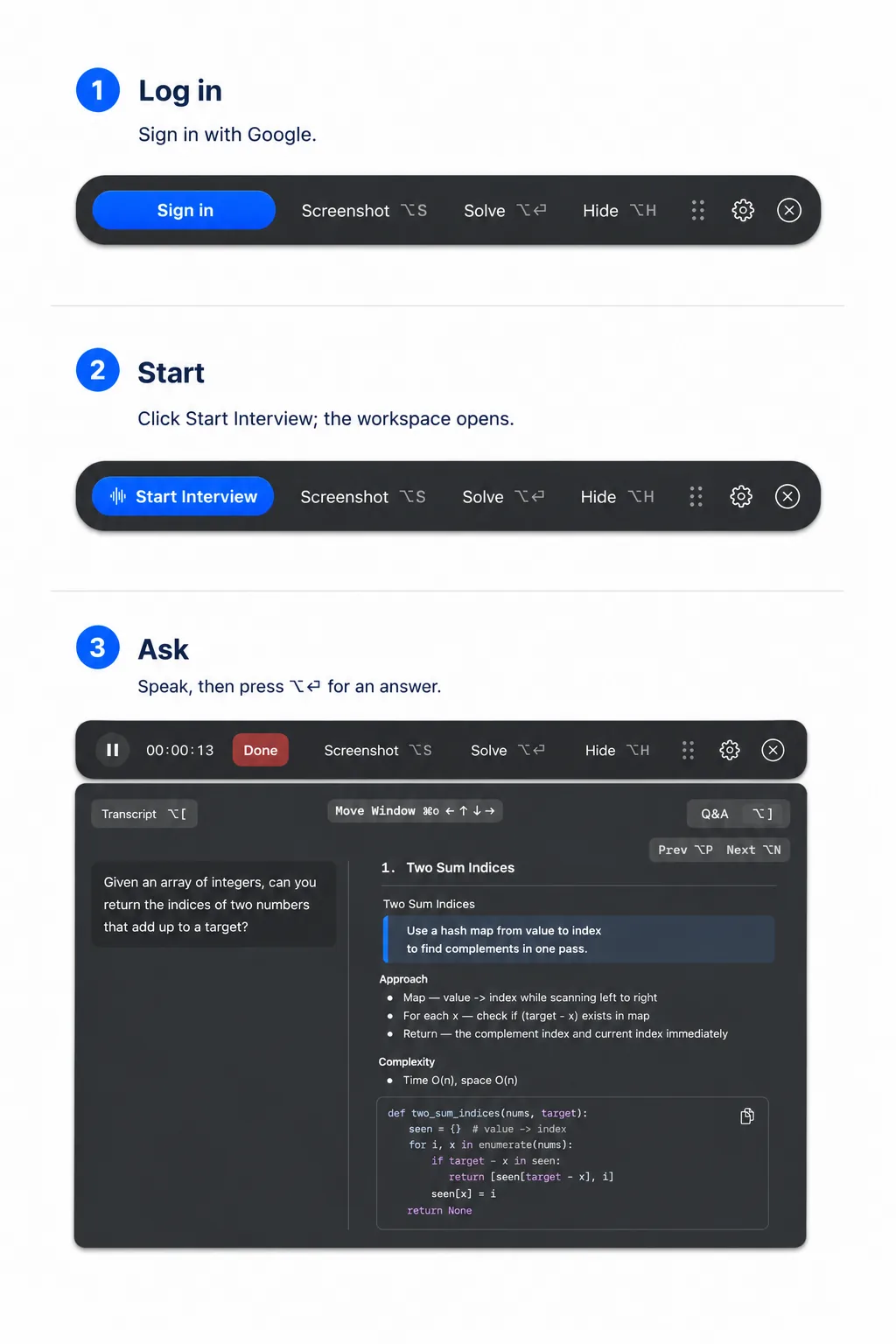
Blocked? Every install and permission failure is in Troubleshooting.
Next
Something not covered here? Email support@cowinx.com with your macOS version and Cowinx version.