Cowinx on Zoom, Meet, Teams & Webex
The stealth itself is the same everywhere — it works at the macOS level, below any meeting app. The only thing that changes per platform is the screen-share UI. Here is the one rule that applies to all of them, plus Zoom's one specific setting.
Prerequisites
The one rule
Cowinx's overlay is excluded from screen capture by the operating system, so it stays out of the outgoing video regardless of which meeting app you run. Your job is simply to confirm that — and to avoid share modes that grab the whole display unpredictably.
Share a specific window or screen — then watch it from a second device.
Pick the share target deliberately rather than letting the app auto-detect, and verify the result from a second device before the real call. That single habit covers every platform below.
Zoom
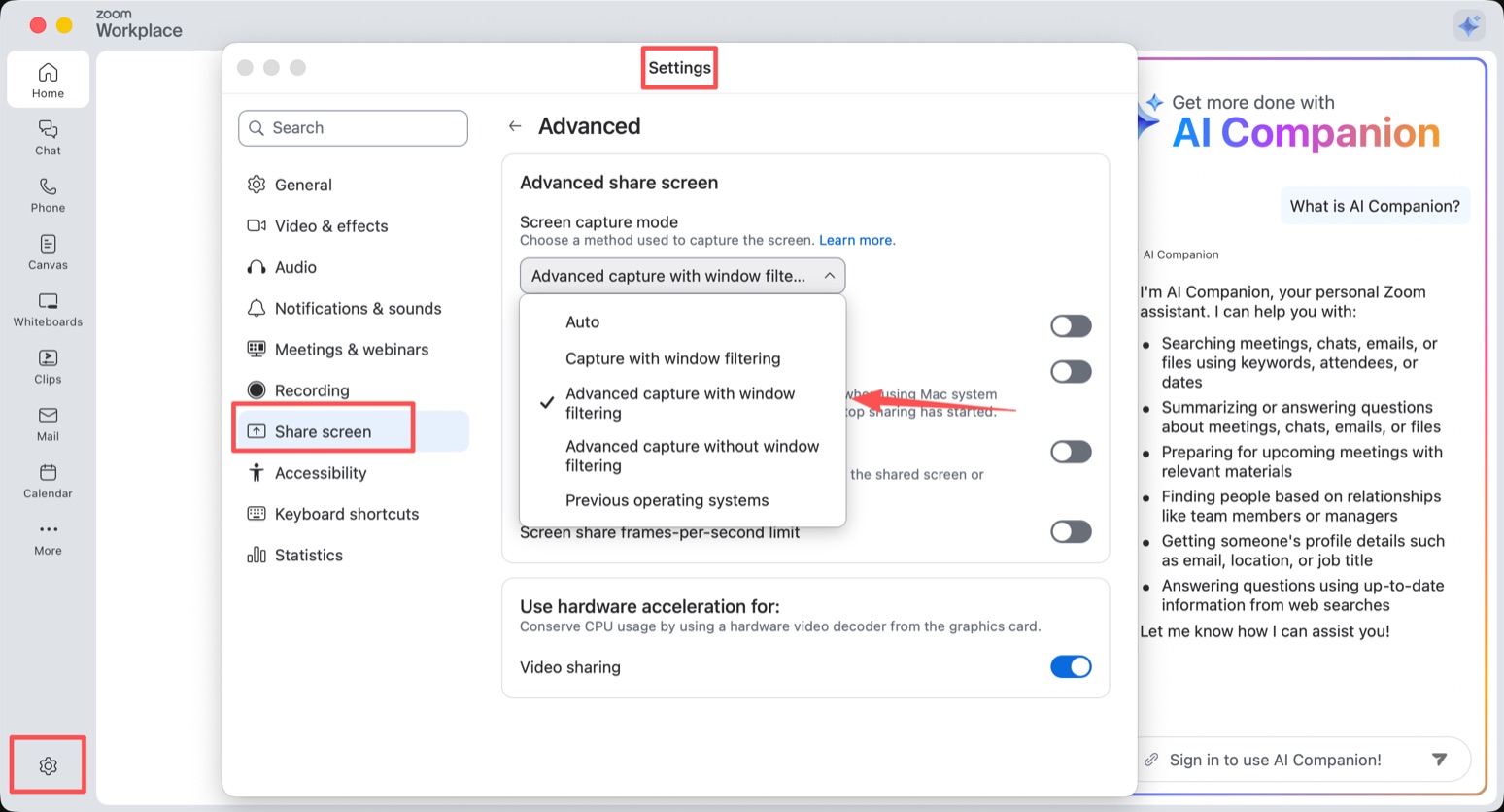
Zoom is the most common platform for technical interviews, and it has one setting that matters. Its screen capture mode controls what Zoom can actually see when you share — and the wrong mode can expose overlays.
Enable Advanced capture with window filtering
- 1In Zoom, go to Settings → Share Screen → Advanced.
- 2Under Screen capture mode, select Advanced capture with window filtering.
- 3This mode captures only the windows you explicitly select — it filters out floating panels, overlays, and system-level windows.
- 4Close and re-open the Settings window to confirm the selection is saved.

Important
Google Meet, Microsoft Teams & Webex
These don't need a Zoom-style capture-mode setting — the same OS-level exclusion applies. The reliable habit is identical across all three:
- 1When you share, choose a specific window or screenfrom the picker rather than an “automatic” or app-detected option.
- 2Join the meeting from a second device (or use the platform's own self-preview) and confirm the Cowinx overlay is not in the shared view.
- 3Because the menus differ between apps and change between versions, treat the second-device check as the source of truth, not any single menu path.
Note
Solving during a call
Once you're in the call, the flow is the same everywhere:
- 1If the question is spoken aloud: just listen. Cowinx transcribes it in real time from the meeting audio.
- 2If the question is shared on screen: press ⌥S to capture the region with the question.
- 3Press ⌥⏎ to solve — in code, a system-design outline, or behavioral STAR format.
Need more help?
Check Troubleshooting or email cowinxlab@gmail.com.