User Guide
Reference for every Cowinx feature — modes, control bar, hotkeys, settings, and FAQ. New here? Start with Quick Start.
1. Two ways to use Cowinx
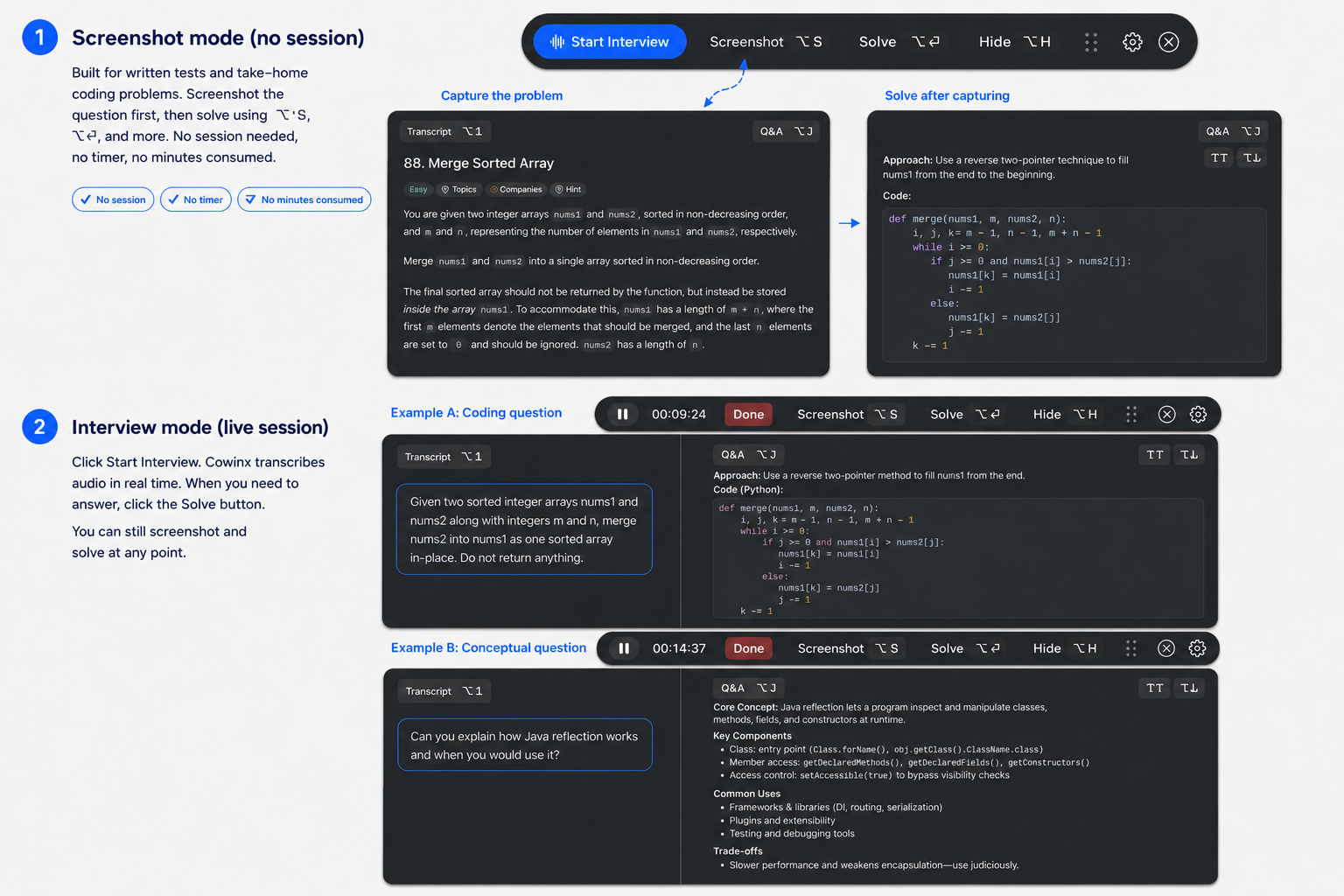
Screenshot mode (no session)
Built for written tests and take-home coding problems. Screenshot the question with ⌥S, then click Solve or press ⌥⏎. No session needed, no timer, no minutes consumed.
Interview mode (live session)
Click Start Interview. Cowinx transcribes audio in real time, but answers are only generated when you manually click Solve or press ⌥⏎. You can also screenshot + solve at any point.
2. The Control Bar
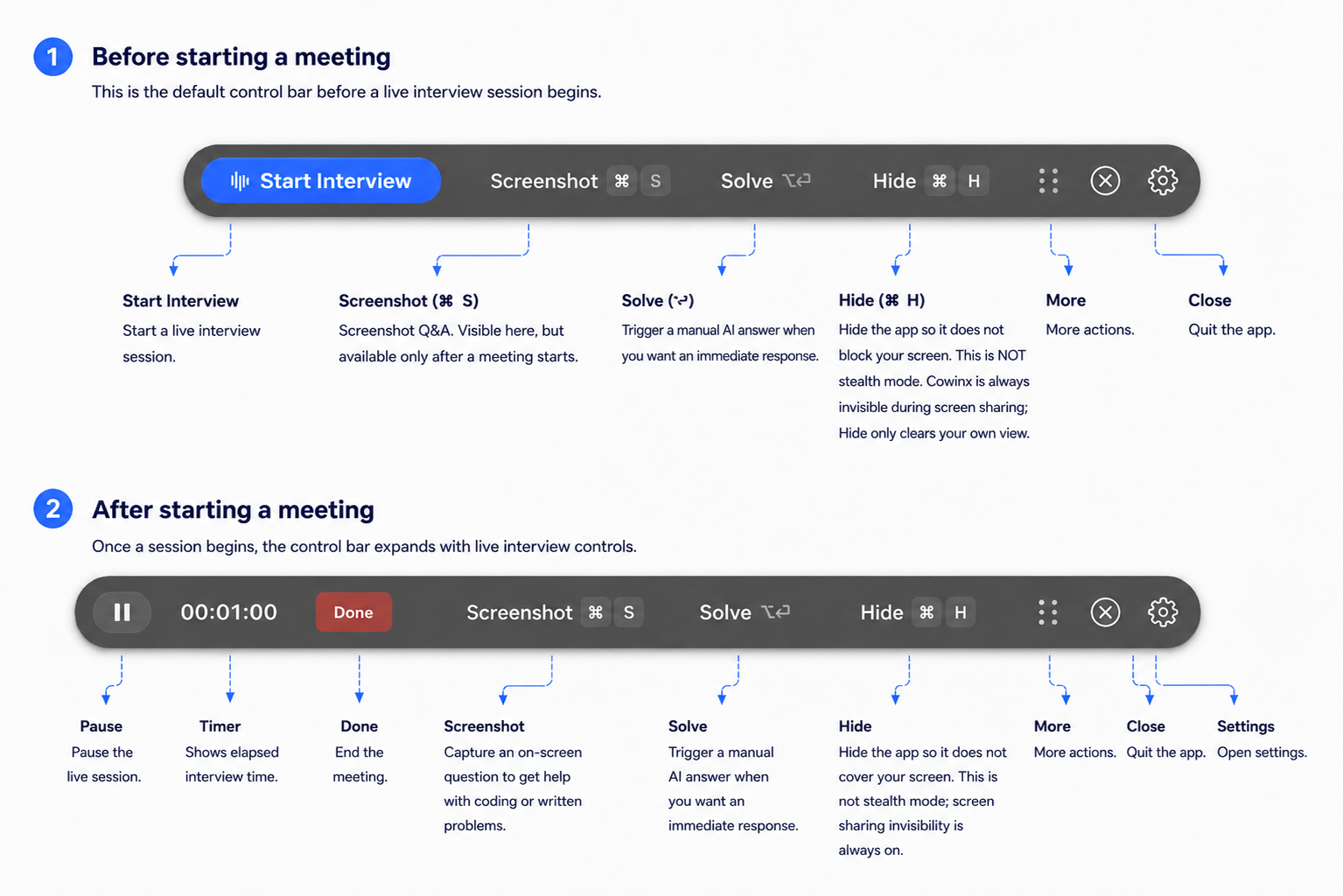
The control bar is the only persistent surface in Cowinx. It floats above all other windows and changes shape based on whether a session is active. Hide it with ⌥H and nudge its position with ⌘⇧↑ / ⌘⇧↓ / ⌘⇧← / ⌘⇧→.
Idle and active states
3. The Workspace
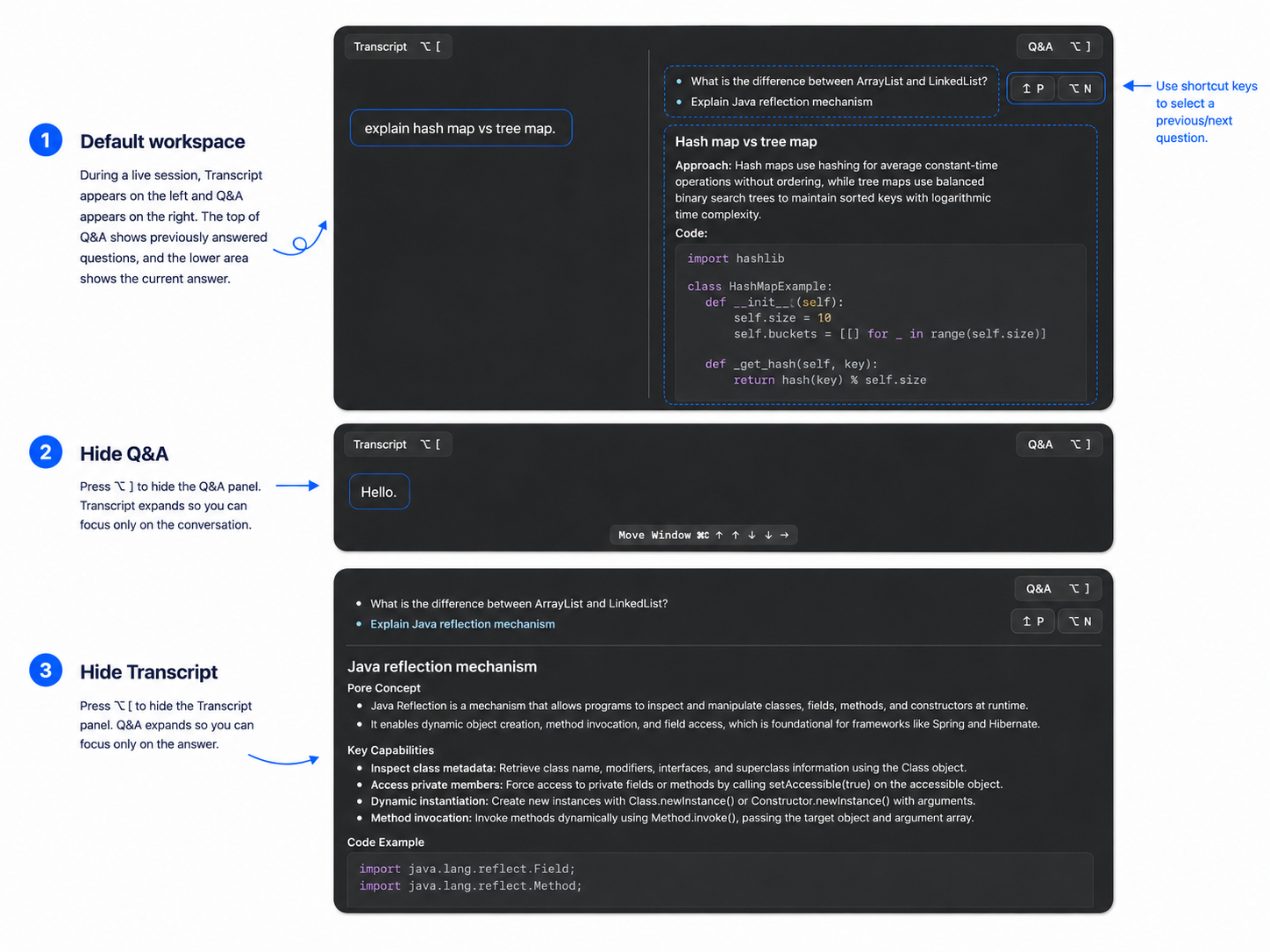
The workspace appears below the control bar during a live session. Toggle the two panels independently with ⌥[ (Transcript) and ⌥](Q&A); at least one stays visible.
4. Manual solving
Solve from transcript
Click Solve or press ⌥⏎ to answer the latest question from the live transcript. Cowinx does not auto-solve as the conversation changes.
Screenshot solve
For anything visual: take-homes, coding questions on the interviewer's screen share, system-design diagrams, written tests. Press ⌥S to queue screenshots, repeat as needed, then click Solve or press ⌥⏎ to solve the queued batch.
5. Settings
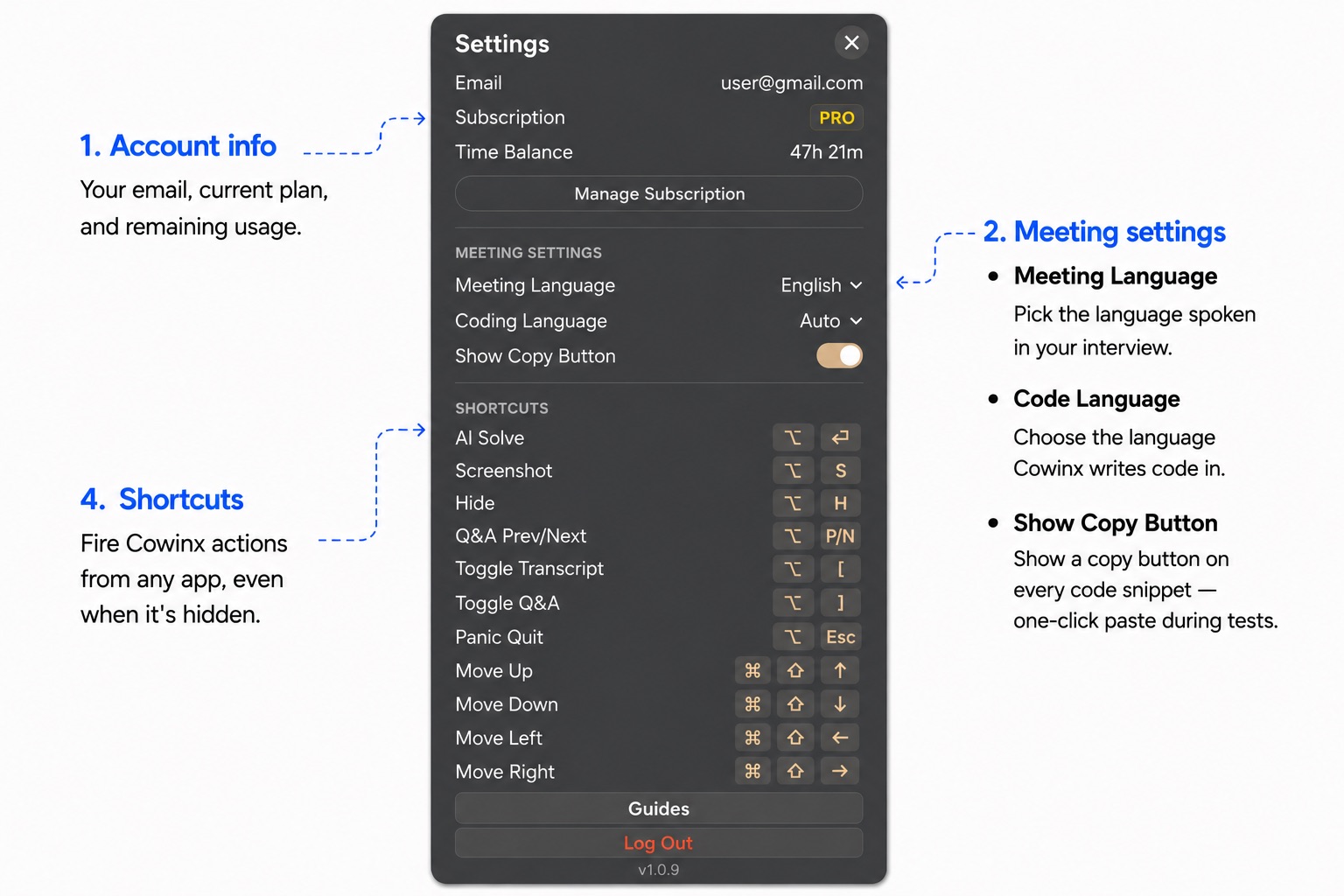
Account — email, plan badge, remaining minutes, upgrade or manage subscription.
Meeting — Meeting Language (7 supported), Code Language (preferred language for code in answers), Show Copy Button.
Shortcuts — read-only reference. Full list in section 6.
6. Hotkeys
Solve
Stealth
Workspace
7. Stealth self-check (5 min before your interview)
Five minutes before the call, run this. Cheapest insurance you'll buy all week.
- Open the same conferencing app the interviewer will use (Zoom, Teams, Meet, Webex).
- Start a meeting with yourself (no other participants needed).
- Click Share Screen and pick Entire Screen.
- In the share preview, scan for any Cowinx UI. The control bar and workspace should both be invisible.
- Open Activity Monitorand search “Cowinx.” You should see “App Not Found.”
8. FAQ
What counts toward my time balance?
How do I upgrade to Pro?
How do I cancel my subscription?
Is my audio stored?
My mic / transcript isn't working — what should I check?
Will the interviewer hear Cowinx?
9. Need more help?
Try the Troubleshooting guide first. Still stuck? Email cowinxlab@gmail.com with your macOS version, Cowinx version (Settings footer), and what you tried.