Get Cowinx running in 5 minutes
Three steps from a fresh download to your first answered question. If you hit a snag, jump to Troubleshooting.
1
Install the unsigned app
Cowinx ships unsigned to stay undetectable — code-signing would publish a fingerprint that monitoring tools can match against. First launch needs one extra click in System Settings.
- 1Open the
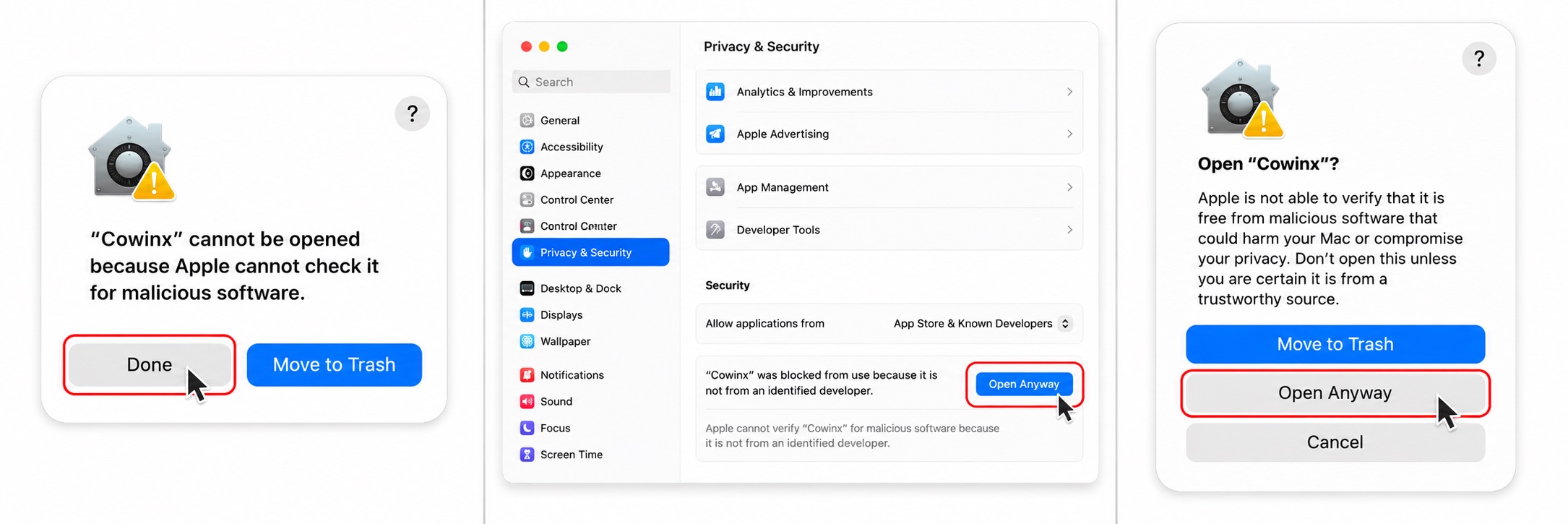
.dmgand drag Cowinx.app into Applications. - 2Double-click Cowinx. macOS blocks the launch — click Done.
- 3Open System Settings → Privacy & Security, scroll to the bottom, and click Open Anyway next to the Cowinx warning.
- 4Enter your password, then click Open.
Note
Open Anyway only appears after step 2 fails, and it lives at the very bottom of Privacy & Security.
2
Grant 3 permissions
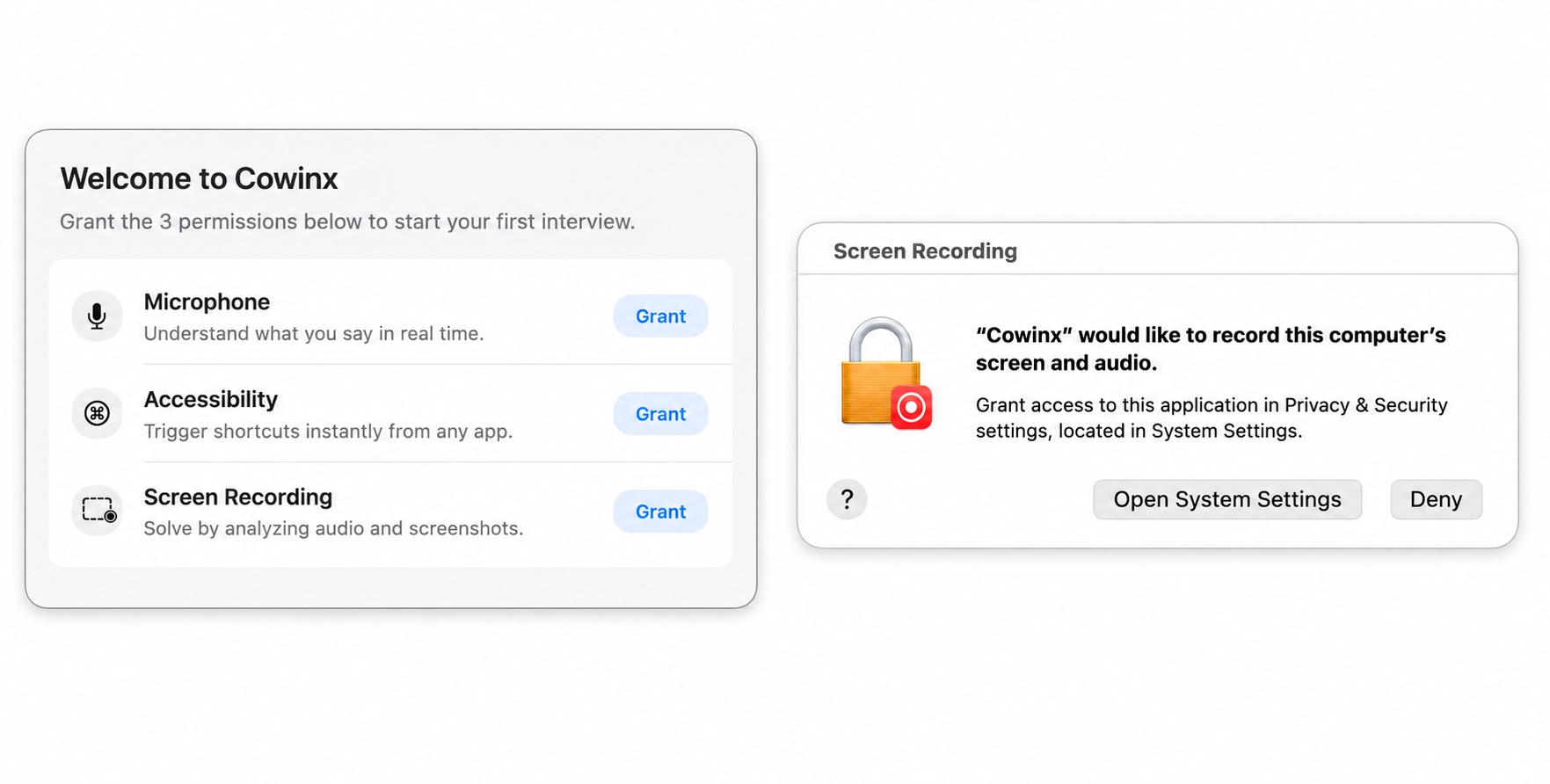
Cowinx needs three macOS permissions, each granted in System Settings → Privacy & Security.
- 1
Microphone
- 2
Accessibility
- 3
Screen Recording
Then quit and relaunch Cowinx.
Important
All three are required. Cowinx will not function correctly until every permission is granted.
3
Run your first session
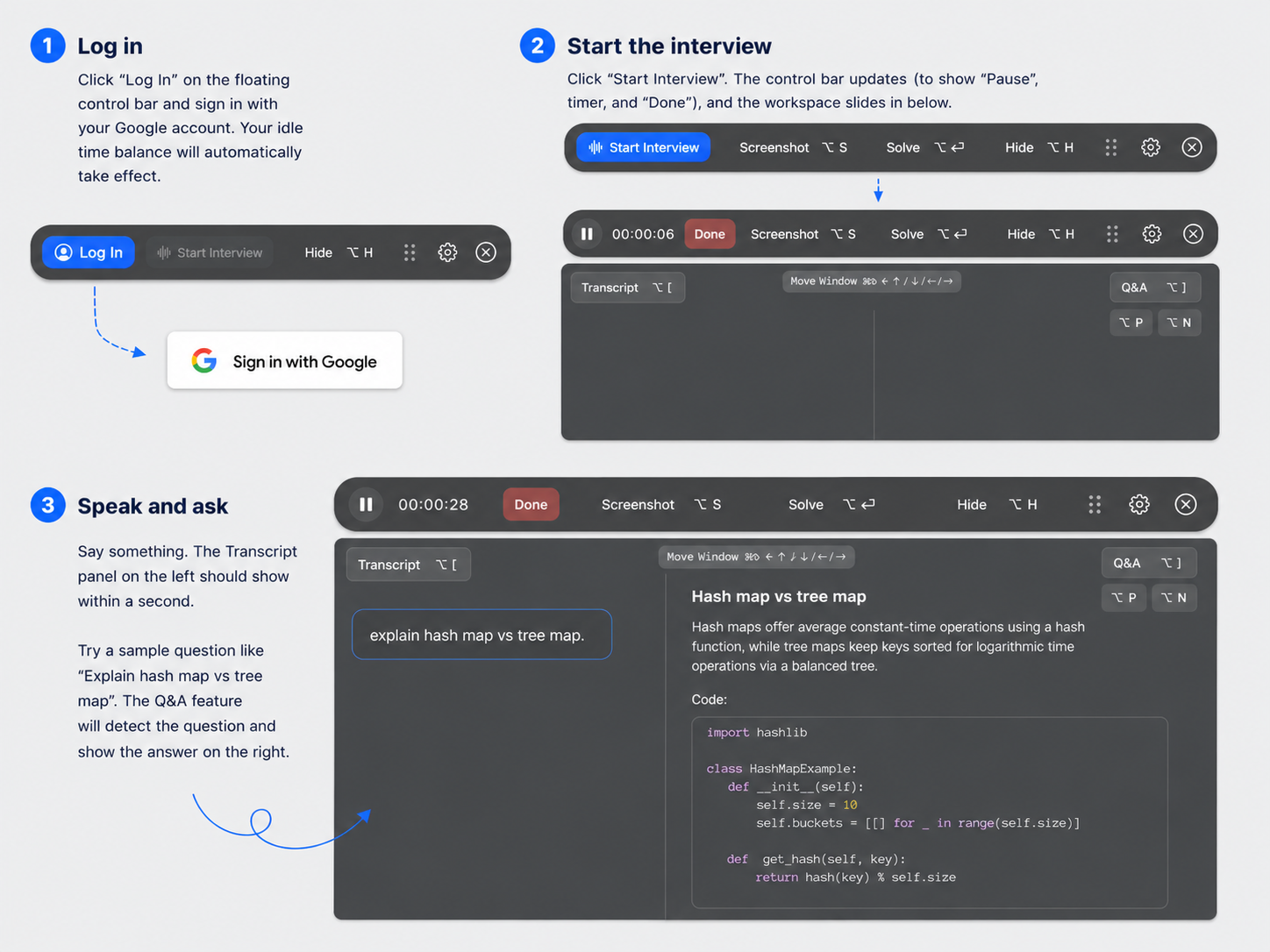
- 1Log in with Google on the control bar.
- 2Click Start Interview to open the workspace.
- 3Say something — the Transcript streams as you speak.
- 4Press ⌥⏎ (or click Solve) to answer the latest question.
That's it — you're set up.
For every feature, hotkey, and setting, see the User Guide.